

Talo Guide
Documents, diagrams, and whiteboard
The three types of output you can get from a conversation (documents, diagrams, and a free-form whiteboard), all saved inside your project.
From a conversation with an assistant you don't just get text in the chat. You can end up with a document, diagram, or sketch on the whiteboard, all saved inside your project alongside the files you already work with.
Documents
A document is a formatted text file (Markdown) you can create, edit, and save inside the project (notes, summaries, meeting minutes, or any written report). You can write it by hand, or ask the assistant to write or edit it inside the conversation.
How to use
- In the content panel, click "+" → "Markdown document" and give it a name.
- Write it yourself, or ask the assistant to draft or edit it in the conversation.
- Save with ⌘S. The content gets written to the project folder.
- If you close Talo with unsaved changes, when you reopen it you can recover the draft or discard it.
Talo never silently overwrites
If the document changed elsewhere while you had it open in Talo (for example, you edited it with another program), Talo warns of the conflict before saving. You decide which version stays.
Diagrams
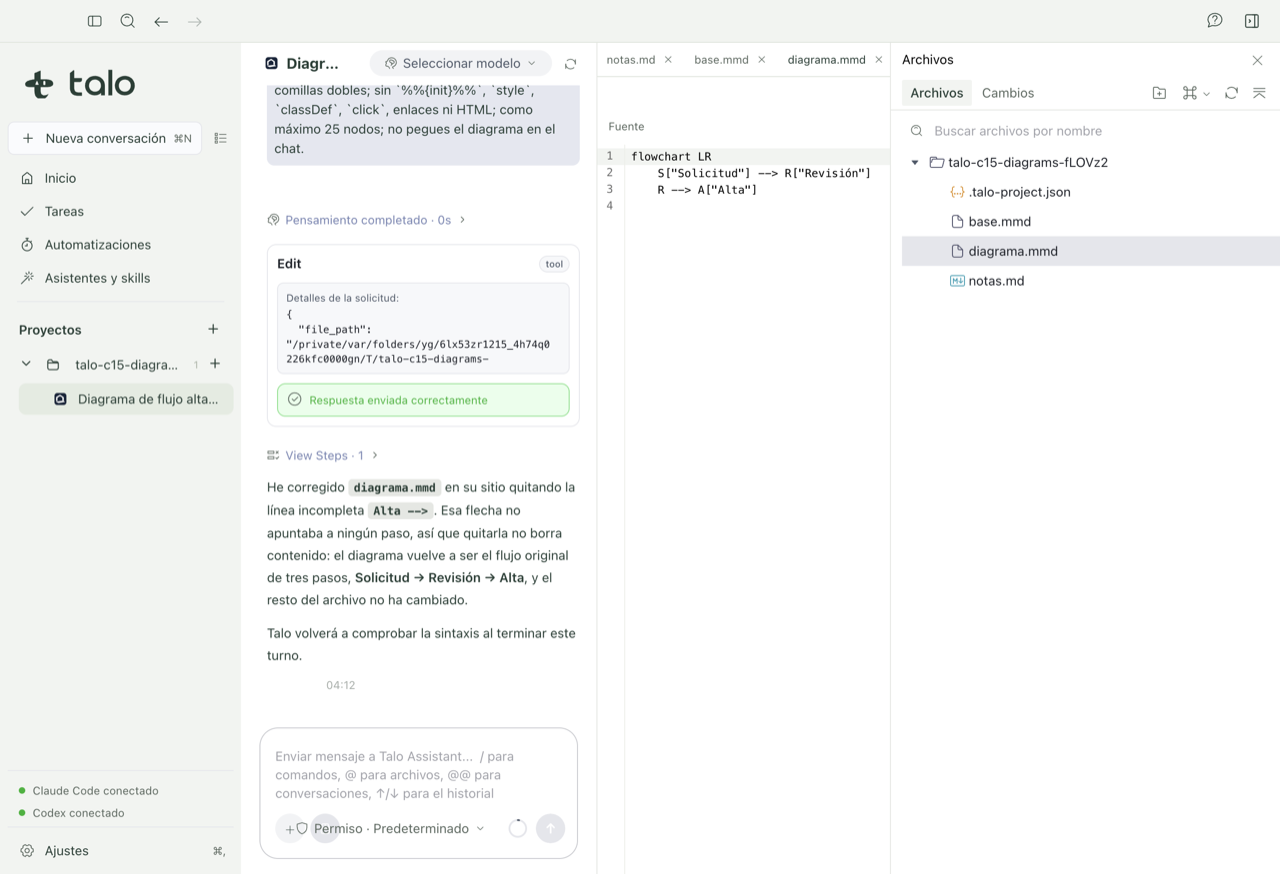
Talo's diagrams are drawn from simple text: you write the steps or boxes on the left and see the finished drawing on the right instantly. You can also ask an assistant for a diagram inside the conversation; if it has an error, Talo returns it so it can fix itself, up to twice, without you touching the text.
How to use
- In the file explorer, choose "Mermaid diagram" → the type you need, like "Flowchart".
- Write the diagram on the left; the preview on the right updates automatically.
- If you'd rather ask an assistant, tell it what steps or relationships you want to show and let it create it for you; if it has a syntax error, Talo returns it automatically to fix it.
- Use zoom and "Fit" to see it well, and export it to SVG or PNG when you need it for a report.
- If you want to include it in a document, use "Insert in a Markdown document" and pick the file. The diagram gets embedded and updates if you insert it again.
Whiteboard
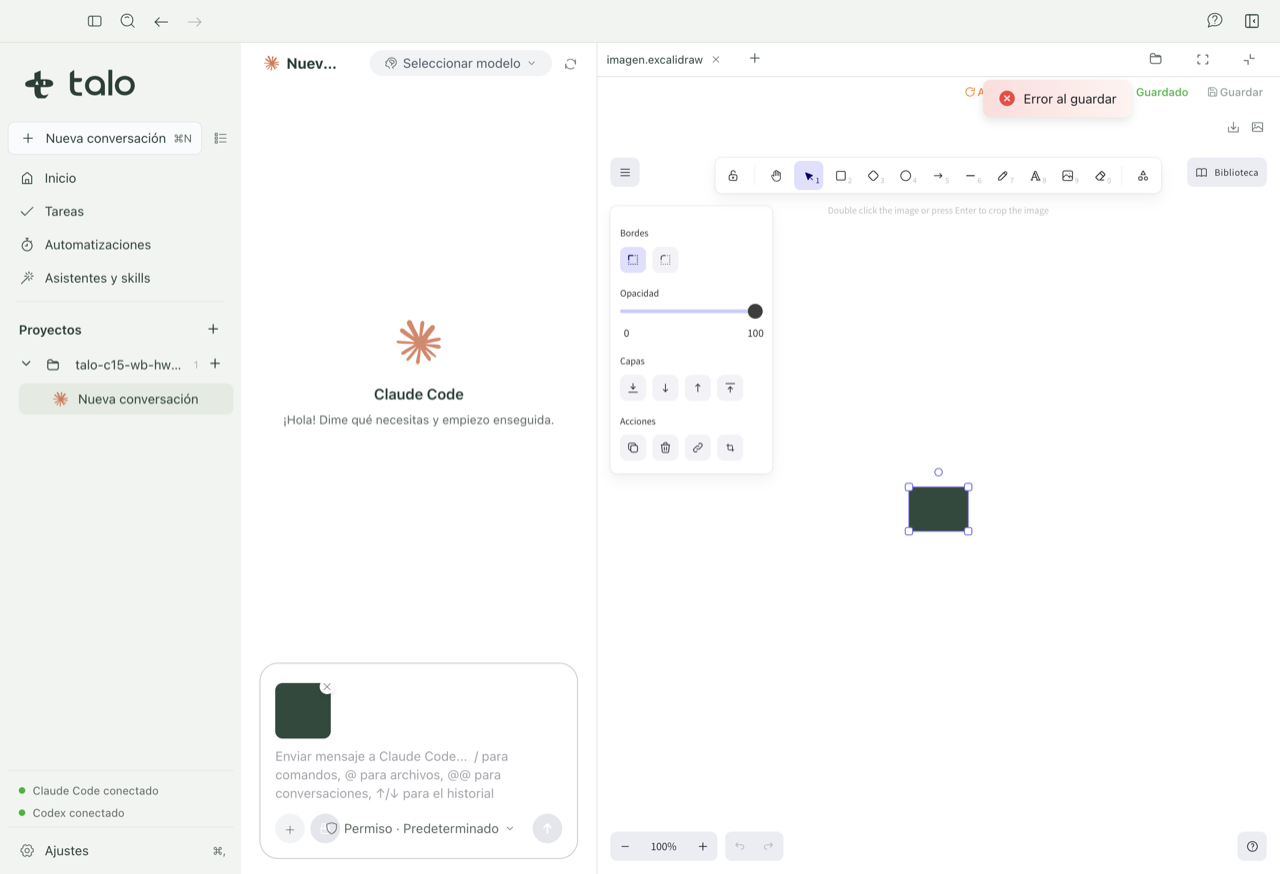
The whiteboard is a free canvas to sketch: shapes, text, and pasted images, no template to follow. It works offline, so you can use it in a room without wifi while you prepare a workshop with the client.
How to use
- From "+" or the workspace dropdown, choose "Whiteboard". A file is created and the editor opens.
- Draw shapes and text, or paste an image from the clipboard with ⌘V. It gets embedded in the file.
- Save your work. If you close Talo with unsaved changes, when you reopen it you can recover the draft; and if the file changed elsewhere meanwhile, it warns of the conflict instead of overwriting, just like with documents.
- Export it to SVG or PNG when you want to share it or paste it in a report.
- If you start from a Mermaid diagram, you can ask to "Create a whiteboard copy" to touch it up by hand in a workshop without changing the original.
Documents, diagrams, and whiteboards you create always live inside a project (or a standalone conversation). Go back to Projects to see how it all organizes.
Mark up changes over a view
The "Review with Talo" button lets you draw and leave comments over a view of a diagram, PDF, spreadsheet, webpage, and other supported files. The marked-up capture is only sent to the conversation when you click "Send to Talo". See Review with Talo for formats, steps, and frozen-view limits.