

Talo Guide
Install a skill for a project
How to find a skill from Talo's catalog that fits a client's methodology and install it only in that project.
A specific project uses its own methodology (for example, meeting minutes with a fixed format or a steering committee with a set structure) and you want the assistant to follow it only there, without affecting your other projects.
Steps
- Go to Settings › Skills. You'll see two sections: "Active" (where each skill is installed,
its version, and status) and the catalog, with skills available to install. The catalog comes built into Talo, so it works offline.
- Find the one that fits the project's methodology (for example, "Steering Committee" or
"Meeting Minutes") and review its description.
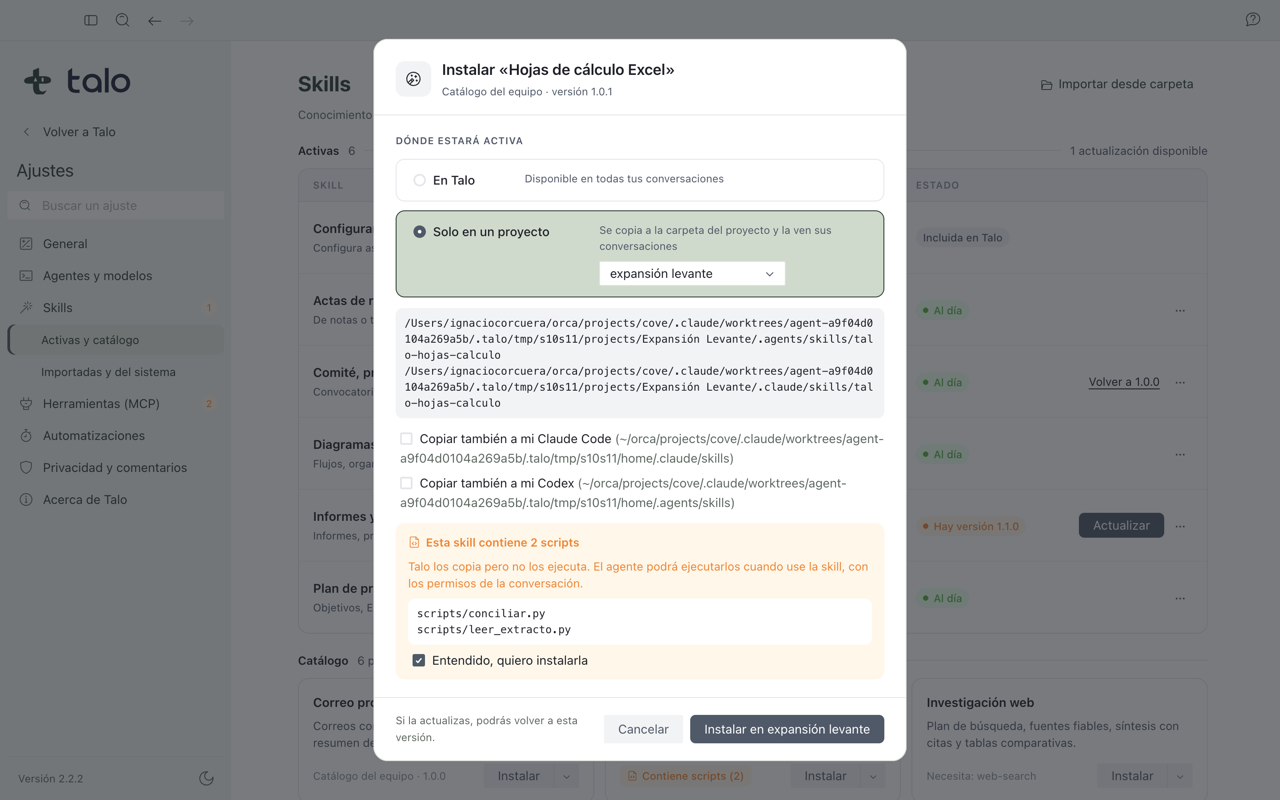
- Instead of just tapping "Install", expand the options and choose "Add to a project".
A sheet shows you the two exact paths where the copy will go before you confirm anything.
- Choose the project. Talo copies the skill only to that project's folder: conversations
from other projects, if you ask what skills they have available, won't see it.
- If the skill brings scripts, Talo tells you before installing: the card shows "Contains
scripts" and a dialog lists the exact files. The confirm button doesn't activate until you mark that you understand.
- Open a conversation from that project and check it by asking something like "what skills
do you have available?". The one you just installed should appear.
Note
If instead of a specific project you install the skill "In Talo", it's available to activate in any assistant from its editor, not just one. Use project installation when the methodology is specific to that client. More detail in Skills.
When the catalog publishes a new version of the skill, the row offers "Update"; if you're not happy with what you see after updating, you can go back to the previous version with one click, as long as you haven't edited the copy by hand outside Talo.