

Talo Guide
Skills
What a skill is in Talo, how to install it from the catalog, and how to update or remove it.
A skill is a package of instructions that teaches your assistant a specific way to do a type of work: how to run a steering committee, what sections a report should have, or what questions to ask in a diagnostic interview. It's just well-organized text and guidance, like handing a new team member a template and best practices from your firm. You don't need to know any programming to use it.
The skills that come ready
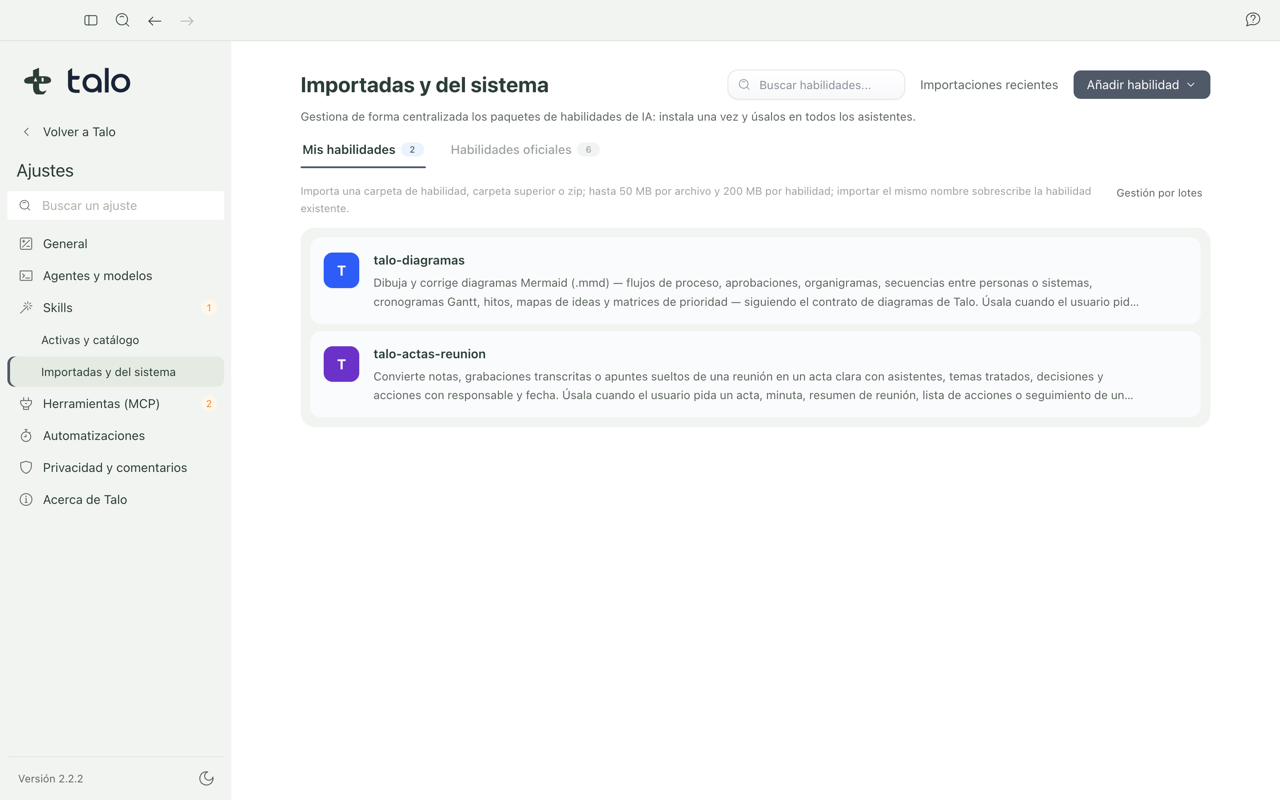
Talo brings a few basic skills already active so the app itself works well from day one. You'll see them in Settings › Skills, under "Imported and system". You don't have to install or maintain them. They're already there and don't depend on you.
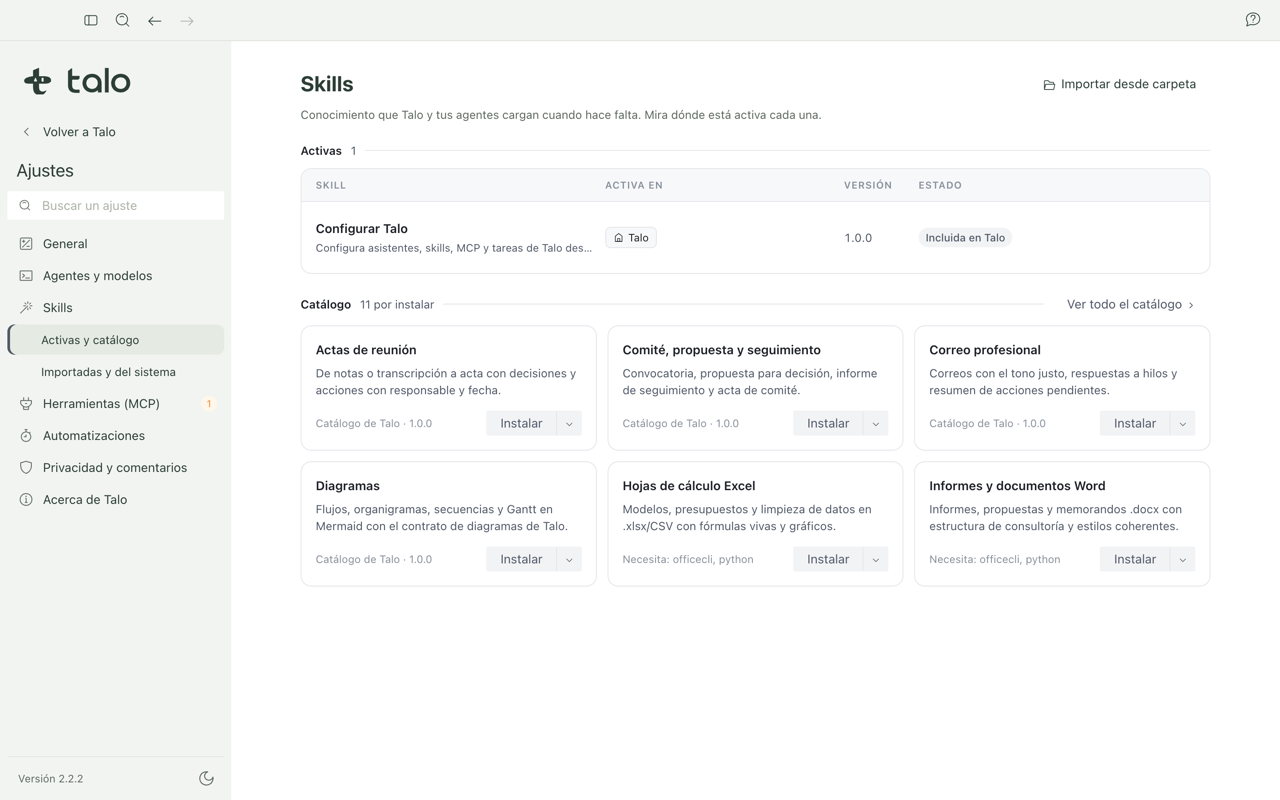
The consulting skills catalog
On top of that, Talo includes a catalog with over a dozen skills designed for consulting: meeting notes, steering committee prep, reports, professional email, and more. These aren't active by default. You install them when you need them.
Note
The catalog is built into the app itself. You don't need an internet connection to install a skill from the catalog. Talo already has it and checks that it hasn't been altered before installing.
Install a skill
- Go to Settings › Skills.
- In "Catalog", search for the skill you want (for example, "Steering committee").
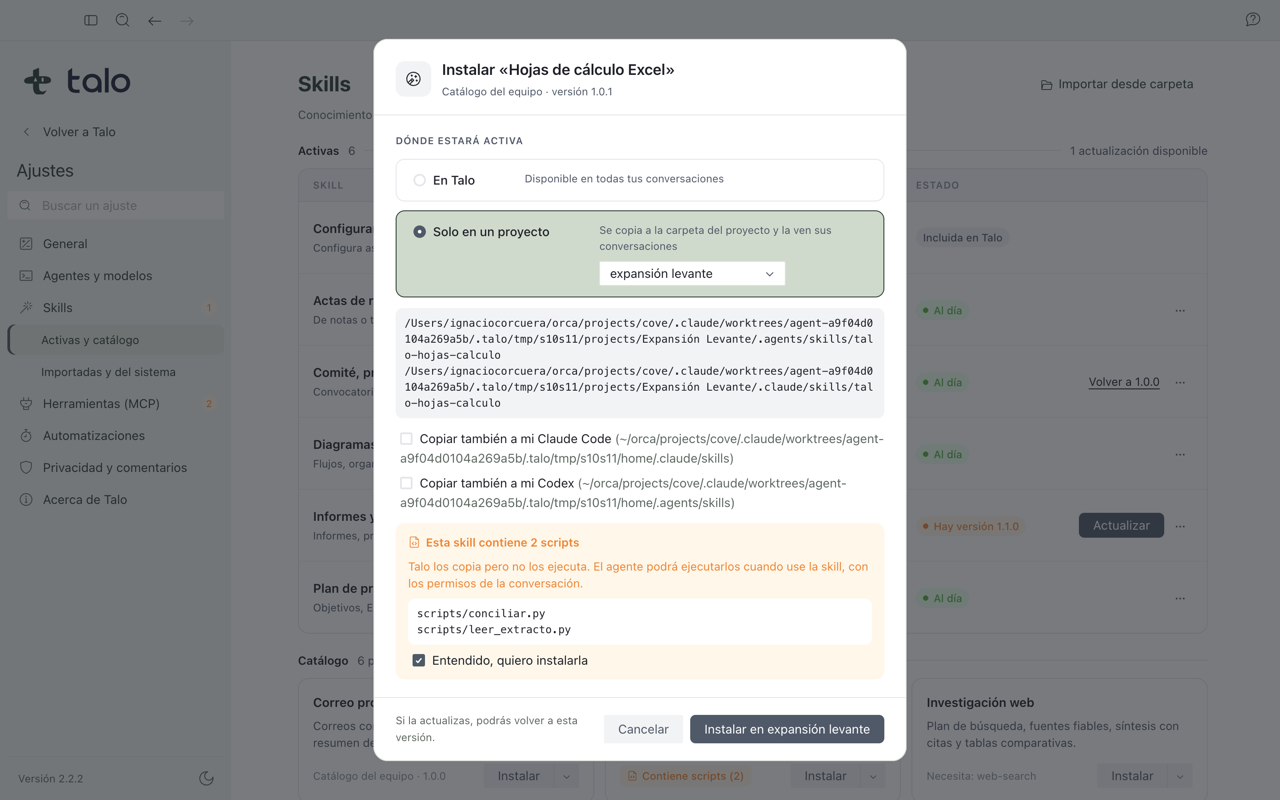
- Click "Install" and choose where you want it available: in Talo (all your conversations) or only in a specific project.
- If the skill includes small programs that run on their own, Talo warns you before continuing and lists what each one does. You can't proceed until you check that you understand.
- Confirm in the dialog that appears. The skill moves to "Active" with "Up to date" status.
Important
Installing a skill is always your decision, with a click and explicit confirmation. Talo never installs or activates a skill on its own.
Where an installed skill applies
- In Talo: the skill is available in all your conversations, with any project open.
- In a project: the skill only shows in that project's conversations, whether you work with Claude Code or Codex. Use this when a way of working is specific to a client and you don't want it to show in other projects.
You can combine both. Install in Talo what you use always, and add to a project what's specific to that client.
Update a skill or revert to an earlier version
When the catalog publishes a new version of a skill you have, its row offers "Update". When you update, Talo saves the version it replaces in case you want to undo the change. The "Revert to earlier version" button restores it exactly as it was.
Note
If you've edited a skill's content yourself, Talo marks it "Modified outside Talo" and stops offering updates or reverts, so it doesn't overwrite your changes without warning.
Remove a skill
In the skill's row, choose "Remove from Talo". You're asked to confirm and shown the path that will be deleted. After you confirm, the skill disappears from "Active".
To install a skill in only one client's project, see Install a skill in a project.