

Talo Guide
Import
Bring in a client folder you already have, or transcribe meeting notes you recorded with another tool, without touching the original.
Import covers two different situations: bringing a folder or .zip you already have on your Mac in as a project, or transcribing meeting notes you recorded with another tool. In both cases, Talo copies. It never moves or modifies the original.
Import a folder or .zip as a project
- Choose "New project" → "Import folder or .zip", or drag the folder or
.zipdirectly onto the projects area in the sidebar. - Talo warns that it will copy the content, without touching the original, and lets you pick the folder or file.
- Review before importing: Talo proposes one or more candidate projects (name and client pre-filled from what it finds inside), with each file already sorted into its folder by role and its original path visible.
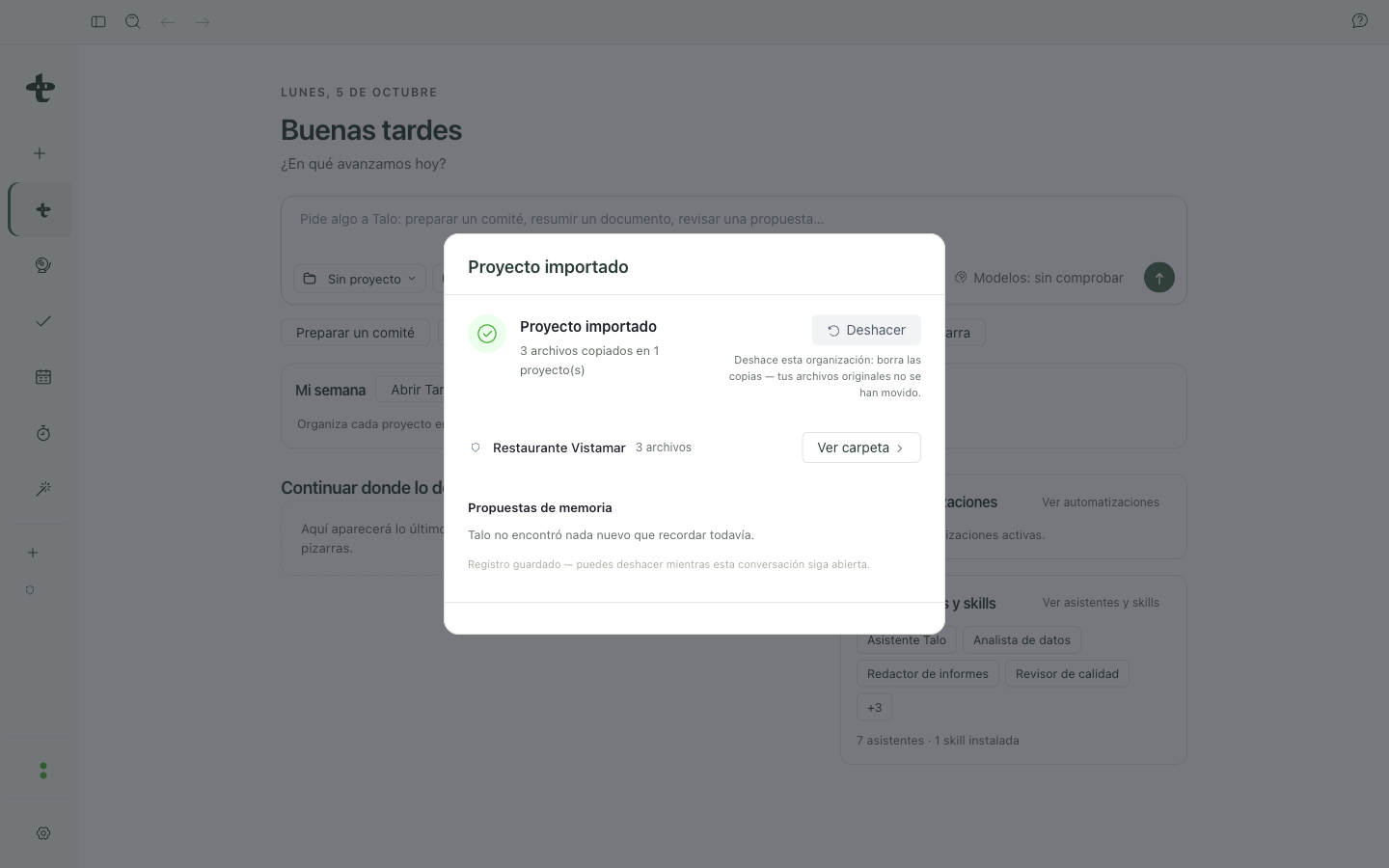
- For each candidate project, decide whether you want to create a new project (the default) or merge its content into a project you already have. This second option is never pre-selected or sent on its own. The choice is always yours, row by row. A file that the analysis itself rejected (too big, type not supported, nested
.zip) is listed separately and never silently disappears. - When you confirm, Talo copies files to the project's role folders and indexes them in memory. You can undo the import right after.
Note
If a batch has folders from two different clients, Talo proposes two separate candidate projects. And even if two existing projects share the same client name, they never merge on their own. Same client isn't the same as same project.
Import a meeting recording
If you already have audio or video of a meeting recorded with another app (supported formats: m4a, mp3, wav, aac, ogg, opus, flac, mp4, mov, webm), you can transcribe it with the same local engine that live Meetings use, with speaker separation ("Speaker 1", "Speaker 2"...).
Three ways to start:
- "New meeting ▾" → "Import recording".
- Inside a meeting that doesn't have audio yet, "Add recording".
- Drag the file directly onto the Meetings section.
- Talo analyzes the file and shows you its duration and format before asking for any confirmation.
- You confirm that you have permission to use that recording.
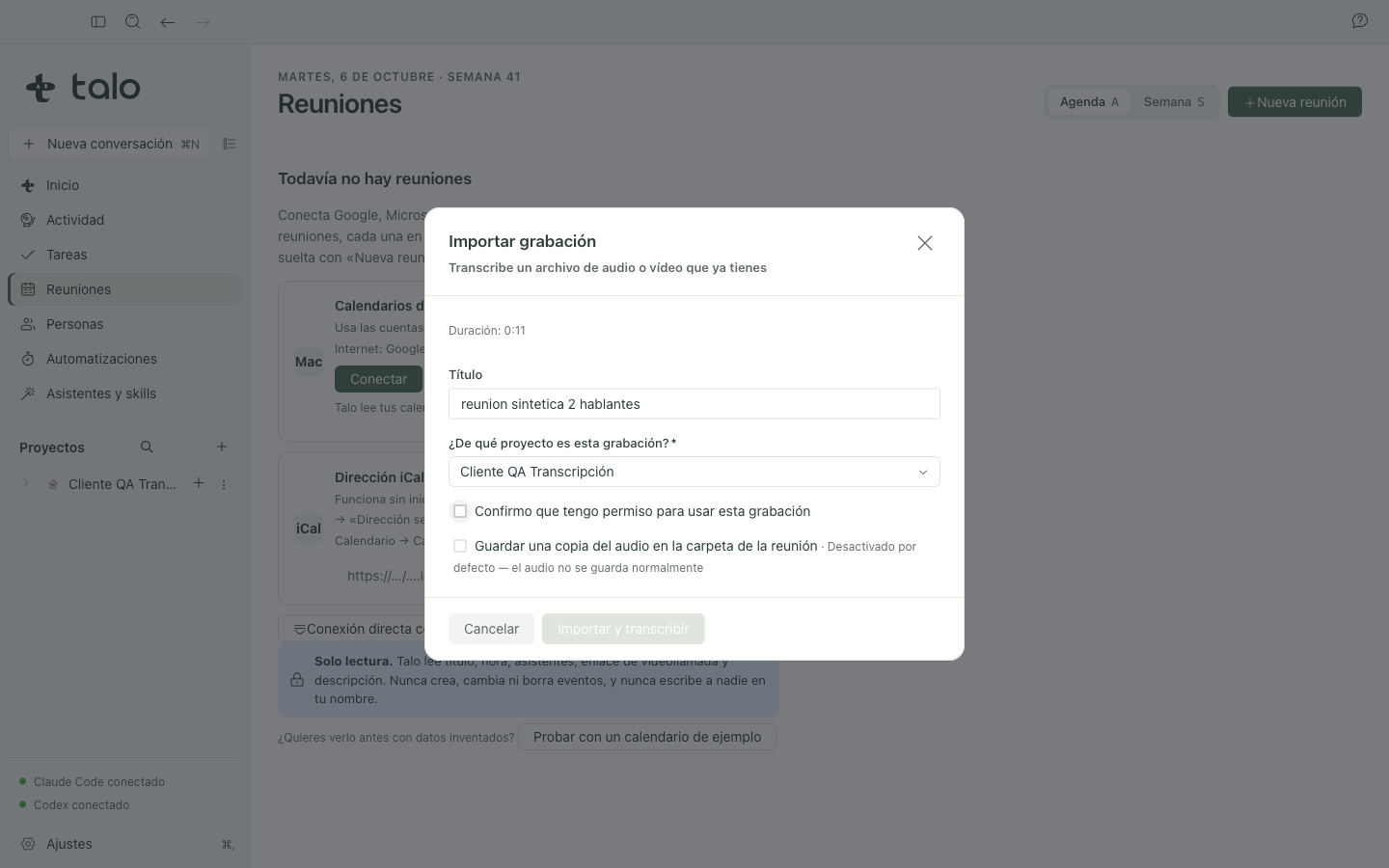
- Talo transcribes it in chunks, on this Mac. A two-hour file processes just like a two-minute one, without loading the whole thing in memory. You can see the progress or cancel anytime.
- When done, the imported meeting follows the same path as one recorded live: automatic notes, "Close meeting", memory, and search with ⌘K. See Meetings for that full journey.
If you need to re-transcribe (for example, after improving the model), Talo tries to keep the speaker names you already confirmed in their order of appearance. It's a best effort, not a guaranteed match. If the order changes between runs, a name might not match the same person.
What reaches an AI assistant
Importing a folder classifies files with Talo's own engine, without sending anything to an AI assistant in that step; transcribing an imported recording is local, just like a live meeting. What can reach a provider is what you do next with those files or that transcript: for example, asking an assistant to generate notes. See Privacy and security for full details.