

Talo Guide
What is Talo
What is Talo, how it works through projects, and what to expect from this guide.
Talo is a desktop application for Mac that organizes work with AI assistants by projects. Each project has a folder with its documents and conversations, plus its own project card and instructions. Talo provides a place to start and continue conversations, work with project files, and review deliverables. The chosen assistant processes your messages; Talo organizes the space and presents the work. Organization by project helps put context in order, but does not constitute absolute isolation on your Mac.
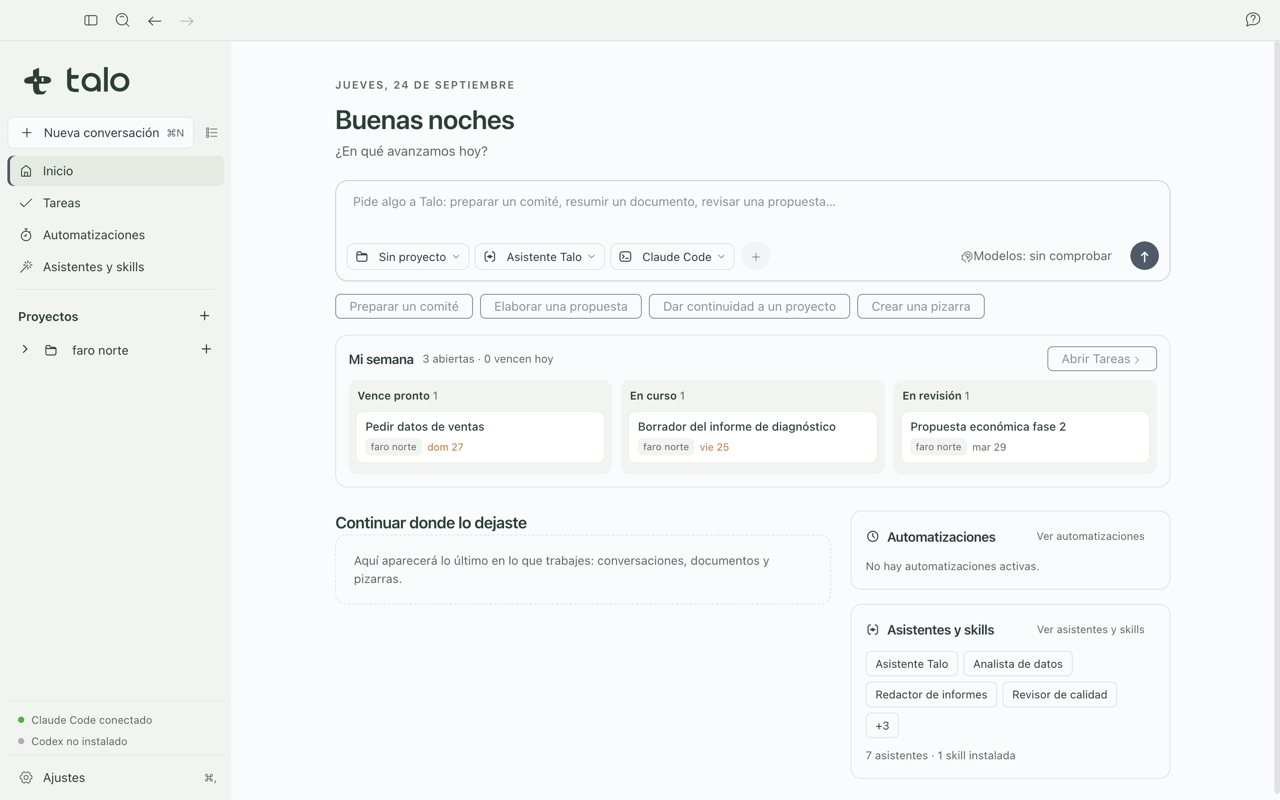
About the screenshots in this guide
Every screenshot in this English guide is a real capture of Talo, currently shown with the Spanish interface (the English interface is on its way). Menus, buttons and labels in the pictures are in Spanish; the surrounding text describes what each one does in English.
The flow: project, conversation, and deliverable
- Open or create a project for your next piece of work. The folder, the project card, and
TALO.mdprovide stable context; you can keep its instructions in writing and edit them yourself. - Start a conversation in that project and choose an available assistant, based on Claude Code or Codex. Describe what you need and add relevant context. The message and context you send to the assistant may reach the chosen provider.
- Work with the result inside the project: create or edit documents, diagrams, whiteboards, or tasks. You can flag a view and send notes along with a screenshot to the chat with Review with Talo. Reviewing a view does not by itself modify the original file.
- Check sources and results. Memory lets you recover cited fragments from files and conversations; its citations help you open the source, but do not guarantee that the assistant's interpretation is correct.
The areas are explained in Projects, Conversations and assistants, Documents, diagrams and whiteboard, and Tasks.
To send messages you need an available assistant authenticated on that Mac. Talo does not require you to code to ask for work in plain language.
Who it's for
Talo works both if you carry several projects at once on your own (freelancers, agencies, sales professionals, or project managers with three or four open initiatives, each in its own folder) and if you coordinate a team (one person who sets up automations and dashboards for the rest to use). In both cases, each person decides what gets installed and what gets connected. Automations can run on their schedule or trigger and leave their changes pending for review.
Review what you're going to share
An automation can run without asking for confirmation each time, but it does not apply its changes to the project until you review them. Messages and files you send to an agent may reach their provider. Check Privacy and security before using customer data.
Where to start
If it's your first time opening Talo, follow this order:
- Installation and first launch: download the app, open it for the first time, and connect your assistant.
- First session: end-to-end tutorial: create your first project and hold your first conversation.